
At some point in your Mandarin learning journey, you'll need to type in Chinese — whether it's messaging a language partner, practising on a flashcard app, or simply searching for something in Chinese online.
The good news: typing Chinese is much easier than most people expect. You don't type characters directly — you type their pinyin romanisation, and your phone or computer presents a list of matching characters to choose from. It takes about five minutes to set up, and most learners are typing comfortably within a day.
This guide covers the complete setup for every platform — iPhone, Android, Windows, and Mac — with step-by-step instructions and tips for typing more efficiently.
join our discord server!
Join the Mandarin Zest community on Discord. Discover Chinese pop culture and internet trends, chat with fellow learners, and interact with teachers and fluent moderators.

How Typing Chinese Actually Works
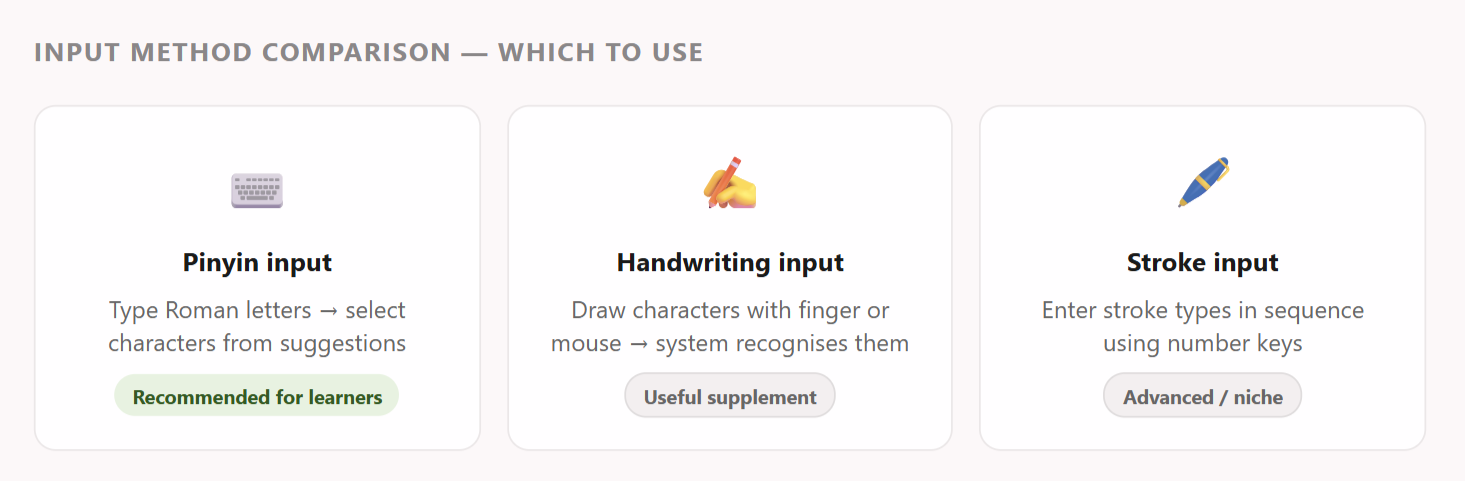
Before setting anything up, it helps to understand the underlying system. Typing Chinese uses a method called pinyin input (拼音输入法). You type the Roman letters of a word's pronunciation — for example, typing nihao — and the input method editor (IME) displays a list of Chinese characters that match. You then select the correct character or compound word.
Modern IMEs are very smart. If you type nihao, the system immediately suggests 你好 as a two-character compound. As you use the system more, it learns your common words and vocabulary, making suggestions faster and more accurate over time.
How to Type Chinese on iPhone (iOS)
Step 1 — Open Settings
Go to Settings → General → Keyboard → Keyboards → Add New Keyboard
Step 2 — Select Chinese Simplified
Scroll down and tap Chinese (Simplified) for mainland China standard characters, or Chinese (Traditional) for Taiwan/Hong Kong.
Step 3 — Choose Pinyin
Select Pinyin from the input method options. Tap Done in the top right.
Step 4 — Switch between keyboards
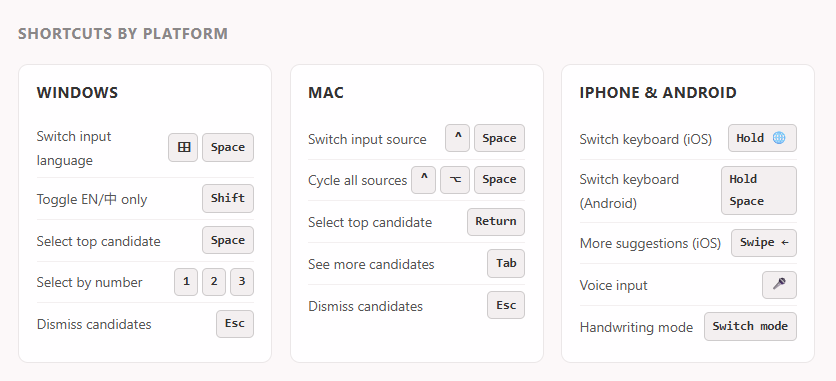
When typing, tap and hold the globe icon (🌐) in the bottom-left corner of the keyboard to switch between installed keyboards.
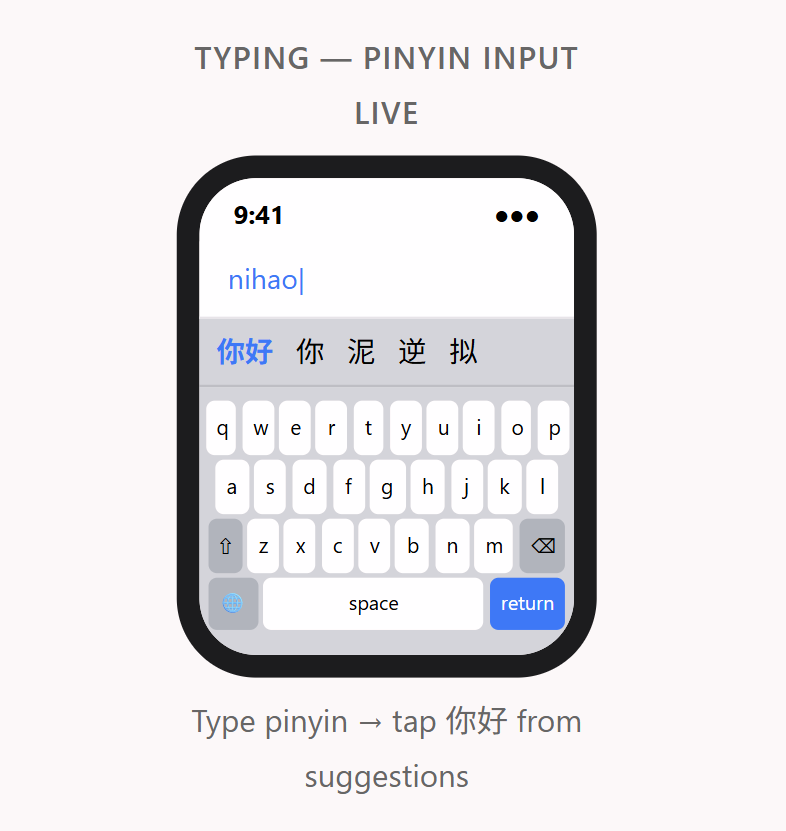
Tip: Type full pinyin compounds (e.g. women → 我们) rather than selecting character by character. The IME handles compound words automatically.
How to Type Chinese on Android (Gboard)
Gboard is Google's keyboard app — available on most Android phones and the most reliable option for Chinese input. Download it from the Google Play Store if it isn't already your keyboard.
Adding Chinese to Gboard
- Open Gboard settings (tap the settings icon in the Gboard toolbar)
- Tap Languages → Add keyboard
- Search for Chinese (Simplified)
- Select Pinyin as the input method
- Tap Done
To switch between languages, tap and hold the spacebar.
How to Type Chinese on Windows
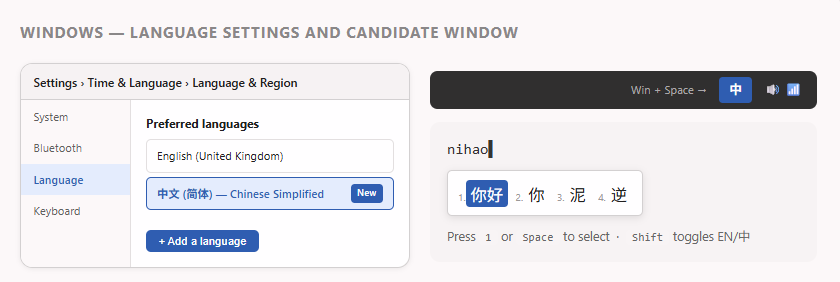
- Go to Settings → Time & Language → Language & Region
- Click Add a language, search for Chinese (Simplified, China), click Next → Install
- After installation, click the three dots next to Chinese → Language options → confirm Microsoft Pinyin is listed as a keyboard
- Use Windows key + Space to switch between languages, or click the language indicator in the taskbar
How to Type Chinese on Mac
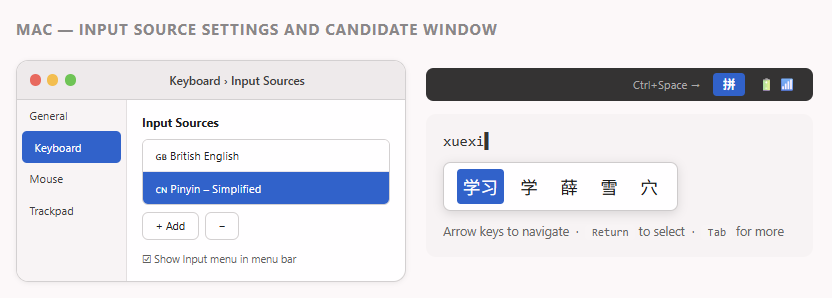
- Go to Apple menu → System Settings → Keyboard → Input Sources → Edit
- Click +, search for Chinese, select Pinyin – Simplified, click Add
- Ensure Show Input menu in menu bar is checked
- Use Control + Space to switch between input sources
Keyboard Shortcuts — Quick Reference
Common Problems and How to Fix Them
Problem | Fix |
|---|---|
Candidate window shows wrong characters | Check you installed Simplified (not Traditional). For HSK learners, you want Simplified Chinese. |
Can't switch back to English easily | Learn the quick toggle: Shift on Windows, Caps Lock on Mac, globe icon on mobile. Set these up and switching becomes instant. |
IME keeps predicting the wrong words | IMEs learn from usage — early suggestions may be off. Keep typing and it improves. Reset learned vocabulary in IME settings if needed. |
Characters appear as boxes or question marks | Font issue — the app doesn't have a Chinese font. Installing the Chinese language pack (done automatically on Windows/Mac when you add Chinese) resolves this in most cases. |
Autocorrect in Word interferes with pinyin | Disable autocorrect for Chinese input sessions, or turn it off globally while typing Chinese documents. |
Setting up Chinese keyboard input is one of those small steps that makes a significant difference to your daily learning. Once it's in place, you can practice typing vocabulary, message language partners, search in Chinese, and engage with Chinese-language content across the web — all of which accelerates your learning far beyond what's possible with English-only tools.
It takes five minutes to set up. Do it today.
The best Chinese materials!
Chinese doesn’t have to be complicated
with the right tools and structure, it actually makes sense.
FAQ
Yes — pinyin input requires knowing the romanisation of words. This is one of many reasons pinyin is the essential first step for every Mandarin learner. If you haven't studied pinyin yet, spend your first week on it before worrying about keyboard setup.
For input purposes, yes — you type consonants and vowels without tone marks, and the IME presents all matching characters. You then select the correct one visually. Over time, you'll recognise the right character instantly.
If you're studying for the HSK or focusing on mainland China, use Simplified. If focusing on Taiwan or Hong Kong, use Traditional. You can install both and switch between them as needed.
Yes — all major platforms support Mandarin voice input. On iPhone, tap the microphone on the keyboard; on Android, Gboard includes voice input; Windows and Mac voice dictation also supports Chinese. Useful for practice but shouldn't replace pinyin typing for learning.
Tone marks (ā á ǎ à) don't appear in standard Chinese input — they're only used in pinyin writing for study purposes. Use a pinyin tone mark generator tool online, or set up keyboard shortcuts for accented characters in your word processor.